Showing posts with label #iOS7. Show all posts

Wednesday, May 14, 2014

How to find your lost iPhone.

(This story is told through the eyes and words of an iPhone)

The memories are foggy as to how my owner lost me, but that's not really what's important here.  What is important is that she found me, thanks to a really knowledgeable and awesome dude (The MacMentor), and a really smart mom (who kept her Apple ID and Password safe).

So here's what I remember...I was having a blast with my owner, down at the beach.  She was living it up, tanning and having fun with her friends, it was a great day!  A few hours go by, the sun started to set, and the next thing I know, she's gone!  Left without me.  I was so sad!  I didn't know what to do, so I waited, and waited and waited.  Thankfully I had a full battery charge.  My only hope was that my owner (who asked to remain anonymous here) remembered her Apple ID, and password.

So here's what happened next (I know because she told me).  My owner was so nervous that her mom was going to go berserk, but thankfully she has a Mac Guy who could help her, his name is The MacMentor (aka, Geoff Horwitz).  She called The MacMentor and told him of her terrible situation and asked him what to do.  The MacMentor asked her if she knew her Apple ID.  She gave him the ID she thought she used, and The MacMentor went to his trusty Mac, opened up Safari and proceeded to go to http://icloud.com.


Once there, he entered the Apple ID and Password my owner gave him (hidden for obvious reasons).  Sadly, he got a message back from iCloud that the Apple ID and password had not been set up!  The MacMentor shook his head in disbelief.  If iCloud had not been set up, how on earth would I (the iPhone) be found?  The MacMentor was sure that my owner had set up her iCloud, so he had her call her mom.  What happened next was just plain awesome!  Thankfully mom had written down the Apple ID and password my owner used for iCloud.  So, mom opened up Safari, went to iCloud.com and signed in with my owners Apple ID and password.


When mom did that she came to the screen capture above.  Next, mom pressed the Find my iPhone button which took her to a map, similar to the one below, but for security reasons, the map below is simply being used as an example.


It's a little hard to see, but on the top right of the screen capture above, there's a window with me, the iPhone, and underneath three buttons.  Play Sound, Lost Mode and Erase iPhone.  Mom was able to locate the iPhone on the beach where my owner had forgotten me, but it was dark out, and it would be really hard to find me!  So, mom called The MacMentor, and he told her to press the Play Sound button (I tell you, that MacMentor dude is a genius!).  This story keeps getting better!  You see, thankfully my battery still had plenty of charge, and I was still on.  So when mom pressed the Play Sound button on iCloud I started making a loud sonar noise.  And low and behold, a few minutes later, even though it was dark, my owner and her friends heard me calling her and she came and got me!  Yeah!  I love stories with a happy ending, and thanks to the wonderful MacMentor, and a resourceful mom,  I didn't get washed up in the tide and lost at sea!

So the moral of the story is this.  If you own an iPhone, make sure you sign in to iCloud, and make sure you remember your Apple ID and password!  And it would help if you knew The MacMentor as well...:).

Thanks for reading, and don't forget to keep your iPhone and iPad safe, using iCloud!


Sunday, April 27, 2014

iCloud basics

Those of us that have owned Apple devices for more than 3 years may or may not remember a service from Apple called MobileMe.  All you need to know about MobileMe is that it never really provided the functionality on the scale that Apple had hoped.  In 2011, Apple re-branded MobileMe to iCloud.  In the almost three years that it's been up and running, it's been a blessing to iOS users.  Offering a cloud service that syncs and backs up your content, and it works!

Why is having a cloud service important?  Simply put, every other major software/hardware vendor has one, and without it, you'd still be plugging your iPhone/iPad/iPod Touch into your Mac (or PC), and muddling through iTunes to sync and back up your content.  That is so early 2000's!  Today it's ease of use we all desire (or demand).  I can tell you, I applauded mightily in October 2011, when my iPhone 4S connected to iCloud and sent my content through iCloud to my Mac and iPad, it was an awesome moment!

So what is iCloud?  In short, it's a cloud based service that syncs your content and it is the best (and easiest)  option to back-up your iOS devices (iPhone, iPad, iPod Touch).  Let' start with syncing.  If you have multiple devices, and I'm not just talking about multiple Apple devices.  You can have an iPhone and a PC, or an iPad and a Mac, or an iPhone, iPad and Mac.  The combinations are endless (well not really but you get where I'm going).  If you have multiple devices iCloud will sync your content seamlessly as long as your iCloud settings are turned on, on the respective devices.


On the two screen captures above (from my iPhone), you'll notice most of the settings are green (or On), however I have a couple (Notes and Reminders) that are off.  The reason I have those two off is because I use other apps for my Notes (Evernote) and Reminders (Wunderlist).  By having Mail, Contacts and Calendar settings all set to on, it allows all content from those apps to be shared amongst any iCloud enabled device that I sign into with my Apple ID and Password.  So if I enter a new contact on my iPhone, iCloud takes that content to the ether, and passes it to my iMac and iPad (without me having to do anything except make sure the same iCloud settings are turned on, on those devices).  Below are the iCloud settings from my iMac.  There is a caveat for the Mail setting.  If your mail address is not an Apple email (@Mac, @Me, @iCloud), in most cases, not all, the mail setting will be grey (Off).  The reason being, if you use another mail host, like Gmail, Yahoo, Comcast or AOL, you don't need Apple to Sync or back up those systems.  Those other systems are supposed to handle that for you.  So if your iCloud account (Apple ID) is "xyz@gmail.com".  There is no need to have that setting on.  Make sense?  Good!


If you looked closely, you'd notice that on my iMac's settings, Notes is checked.  Why would I have it checked on my iMac, and not on my iPhone?  Because prior to using Evernote, I did use the Notes App on my devices, and if I turn the setting off on my iMac, it will erase the notes that are there, and I don't want to do that...:).  I also took screen captures of the Photos setting and the Documents and Data setting.

So as you can see, iCloud handles, or can potentially handle quite a bit of information.  If you chose not to use iCloud, as I mentioned earlier, you'd be stuck in iTunes hell!  

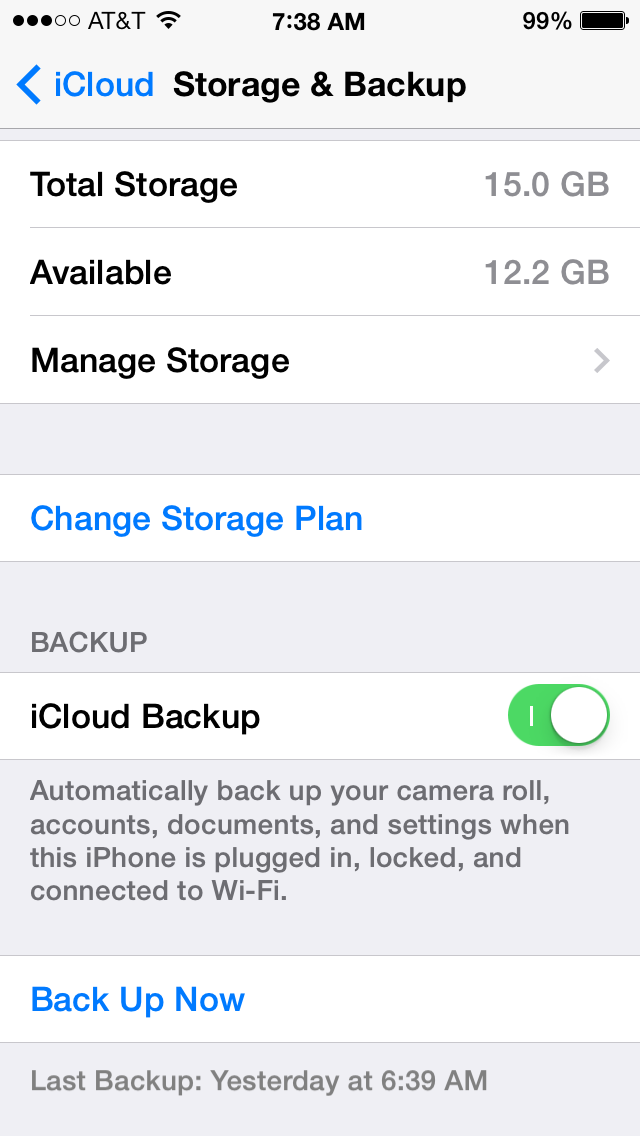
Now iCloud not only syncs your content, but, it also backs up your iOS devices.  Now, what does that mean, and how does that work you ask?  Great questions!  iCloud back ups work like this:  as long as the Backup setting is turned on (see below)


And your device is On, charging to an outlet, and you are in a wireless network, iCloud will ping your device, check when the last backup occurred (in my case 7:22 PM yesterday), and if you are beyond 24 hours since the last backup, iCloud will create a new backup for you.  Or, you can manually backup your iOS device by pressing the "Back Up Now" option if, and only if it is blue, as in the screen capture above (must be in wireless network for this to work).  Please keep this in mind.  iCloud only keeps 1 backup per device.  So you can manually backup as many times as you'd like during the day, but iCloud will only keep the latest.  Reason is because you only need 1 complete backup.  If you are charing your device, and in a wireless network, but your device is off, guess what will not happen, your device will NOT back up!  Any guesses as to why?  If you said "because when your device is off the GPS is disabled, and iCloud can't ping your device", you are 100% correct!  So, don't expect backups to occur when your device is off, because they will not!

Now I wrote about Photo Stream in an earlier blog, so I'm not going to go too much into it here, except to say that you should make sure your Photo Stream settings (below) for My Photo Stream and Photo Sharing are turned on.  The Burst Photos is specific to the iPhone 5S, no other devices currently have that capability.   If Photo Stream and Photo Sharing are off, your pictures will be stuck on your iOS device, until you will manually move them to your Mac (or PC).   


Now if you are a PC users with iOS devices, don't feel left out, you can download the iCloud Control Panel for your PC, and that will allow you to sync content between your iOS devices and your PC, nice move Apple!

Another key element of iCloud, is space.  How much do you get, how much does it cost, what if you run out!  When you create an iCloud account, you get 5GB of free storage.  If you have multiple devices attached to that iCloud account, you'll run out of 5GB quickly.  You can purchase an additional 10GB for $15/yr, 20GB for $40/yr, and 50GB for $100/yr.  Honestly, the additional storage is costly considering what other services offer.  I wonder if and when Apple will lower the prices here.

Finally, and perhaps most importantly, if you have an Apple ID for iTunes, should you use that for iCloud?  My best answer here is, it depends.  If you have a family, sharing an Apple ID for iTunes, I recommend each of you having your own Apple ID for iCloud.  An example would be family of four, mom, dad and two kids.  The Apple ID for iTunes has been set up under dad's email.  Now everyone has multiple devices, and if everyone is sharing dad's Apple ID for iCloud, you'll find you have no space to back up.  Not to mention your contacts, calendar events etc, etc, etc are a combination from everyones devices!  Yuck!  So Mom, and kids should create their own iCloud account (Apple ID).  Don't fret, you can still share calendar events and other content, you'll just share what you want to.  

Well I hope this iCloud intro has been helpful.  Until next time, best to you and your devices!


Monday, March 3, 2014

Great iPhone and iPad devices

Not to be outdone by our sister post, the February App of the week, here comes the February Device of the week blog post.  February's devices covered a couple of different areas.  There were two devices that helped you keep track of things, Tile and the Tagg Pet Tracker.  There was what I consider may be the Device of the year, the Lacie Fuel which provides much needed storage wirelessly to your iOS devices (and computers too!).  Then finally there was the Jawbone UP, a great tool to help you keep up with your sleeping, eating and overall health.

Now my first device, the Tile, is not out yet, however it's completely SOLD OUT it's pre-orders.  To the point where close to 50,000 Tile's have been pre-ordered to date!  Not bad.  So what is Tile?  Let's find out...

Tile is a tiny square device that attaches to stuff you don't want to loose.  Could be a piece of luggage, a child's back-pack, a set of keys.  Here's what it look like.  In the screen capture below, it's attached to a keyring.  So you can see, the device is quite small.


The Tile App lets you find your Tile(s) anywhere they may be.  You can have up to 10 Tiles on one account, and you can share access to your Tiles with friend or family members.  If triggered, an alert is sounded.  If you can hear the alert, you can find the Tile.  Another cool feature, your Tile App remembers where it last saw the Tile, which should help you find it if you can't remember where you left it...

Some other cool features:  The App lets you know when you are getting "warmer" to your Tile.  There are no batteries needed, the Tile lasts 1 year, and  you'll get a reminder when it's time to order your new Tile.  For more info, or to order your Tile device, head over to
http://www.thetileapp.com

Keeping with the previous theme of helping you find things, the next App I want to highlight is the Tagg Pet Tracker.   The Tagg system is very cool.  It lets you to track your pets location and activity from your computer and you iOS device as well.  Your can see where your dog is, and monitor it's activity levels as well.  The tracker is lightweight, and it easily attaches to your pets collar, and if your dog swims, it can even be worn while swimming...Nice!  The tracker basically turns your pets collar into a GPS device, awesome!
For additional information, or to purchase this great device for your pet, head on over to http://www.pettracker.com.


Ok, switching gears from our tracking devices, here is a device that I'm nominating for Device of the Year.  The Lacie Fuel.


Ok, so what is the LaCie Fuel?  It's a 1TB (that's 1 TerraByte, or 1000 giga bytes) of wireless storage!  Now, I know what you are thinking, it's a 1TB hard drive, right.  So what's so special about this one, there are plenty of 1TB hard drive out there, right?  Well Yes, there are plenty of 1TB hard drives available, but how many of them have wireless capability, and how many of them connect to your iOS device??  As far as I know, this is the first, and coming from LaCie, a company that makes some of the best external drives available, that makes it awesome!  You can share the Fuel with up to 5 devices, at once! It even works with the AppleTV.  How does it work?  The Fuel creates it's own wi-fi network!  Get this, you can stream HD movies to three devices at once!!  How awesome for a family vacation!  You'll also download the Seagate media app to all the devices that you wish to access the Fuel.  

This is just tremendous!  It turns your 16GB iOS device into a 1TB iOS device.  
The Fuel cost $199, consider it priceless for the extra storage it gives your iOS devices.    
http://www.lacie.com/products/product.htm?id=10618

Ok, wrapping up my February devices, the Jawbone Up.  


The Up is way more than a device, it's a personal health tracking system.  The Up has a companion iOS app that syncs what the Up captures, and displays for you.  So what exactly does the Up track you ask?  Many things...:).  For one, it tracks your sleep.  You set up your sleep goals, and the Up then tracks how long you slept, how long you were in light sleep, deep sleep, how long it took you to fall asleep, and even if you woke up!  How cool is that?!?


You can also set goals for your steps during the day (my goal is 10,000).  The Up tracks your steps, then you can sync the Up to your iOS device to enter your steps.  I Sync my Up periodically through the day.  Some people sync once a day, it's totally up to you!

The most challenging part of the Up system is tracking your eating.  The device won't do that for you, that is a manual process, but with the App, you can scan in your food and it captures all the information about what you just ate!  So if you are looking for a way to help yourself keep track of your health, check out the UP.  I've been using it since Valentines day, and I love it.  It's helped me monitor things I never thought of, and can help you as well!

Ok, there's your more in depth breakdown of the February Device of the week postings.  I hope you've found the breakdown helpful, and I hope you check the devices out.

Until next time, best to you and your devices!


Sunday, March 2, 2014

Great iOS Apps.


Well I sure am glad we are out of February, it was ridiculously cold!  Hopefully that didn't stop you from checking out the great apps I highlighted last month on The MacMentor's Weekly posting on Facebook for the App of the week.  My goal with the app of the week postings is to make you more aware of the great tools out there for your iOS devices.  Then at the start of each new month, give a more in-depth review of those apps with these blog posts.

Ok, so the 1st app highlighted this past February was a cool note taking App that is a nice companion to Evernote.  The app is SwiftKey.


SwiftKey uses what it calls predictive technology, to advance the keyboard by learning how you write to better provide autocorrect and smart next word predictors or predictions.
SwiftKey Note gives you a cool new way to capture your thoughts, in an easy to use, beautiful app.  

SwiftKey is like Artificial intelligence for your iOS device.  The more you use it, the smarter it gets.  Even better, it connects with your EverNote account to further personalize your experience by making predictions based on your EverNote archive of notes.  Below you see screen shots from the SwiftKey app.  Under the +, you see the Elephant Head icon, which is the EverNote icon.  So you can create a note using SwiftKey, and store it in Evernote.   


One of the best features of SwiftKey is that it gets smarter as you use it more, and learns to adapt with you over time.  You can track your typing stats in settings, and watch your typing and productivity get better and better!  


Ok, for the week of February 9th, I choose the new app from Facebook, Paper as that weeks App of the week.  Facebook has been one of the top 50 iOS apps since it came out some six years ago.  But honestly, the app is tired and has needed a facelift for quite some time.  Well Facebook finally gave itself that needed facelift, sort of.  The Facebook app hasn't changed, but they did create a new one, called Paper, that is fantastic, and provides a much better user experience.  


One of my favorite features in Paper is the ability to Edit Sections.  Sections provide you with the ability to view things that the original Facebook app did not offer, sort of like news sections from different Sections of life.  The different Sections offered range from Pop Life, to Flavor, to Planet, to Family Matters.  

To get to Edit Sections, from the your page, or section (which is your home page, screen capture 1 below) take your finger, and swipe down on the screen.   That takes you to the Facebook Section (2nd screen cap below).  On that page, take your finger and swipe down


 Now you are taken to a page that will look similar to the one below.  


Next, you'll click on the Edit Sections field which takes you to a screen similar to the one below.  The lower portion of that screen let's you pick what will be displayed on your "Paper".  It's a cool concept, and adds some much needed life to what was an incredibly dull, boring Facebook experience on your iOS device.  


Once you've added the sections you wish to view, you click done (upper right corner of your screen), and you are taken to what is your Paper home screen.  From there you swipe along the lower portion of your screen to view the posts of your Facebook friends.  If you wish to view a post, you tap on it.  Notice below, the post in the middle that reads "Happy Independence Day".  I tap on that, and it full screens (2nd screen cap below).


So, all in all, Paper is a very cool, much needed update to the Facebook App.  If you visit the Facebook App on a regular basis, I highly recommend downloading and using the new Paper app instead!

Next up, an App that I use regularly to keep track of my to-do's.  It's called, Wunderlist.  


Wunderlist is flat out awesome!  It not only tracks your to-do's, but lets you create numerous to-do lists.  It's super easy to use interface lets you get up and going very quickly, and it's companion apps for the Mac and PC make it that much more lovable (not to mention, Wunderlist can also be accessed via the web!).  

When you open Wunderlist on your iOS device it looks like the screen cap below.


If you want to add a list, notice in the screen cap above the "+Add a list...", simply tap that and you can create a new list.  To create a new to-do, simply tap anywhere on the right side of the screen, and it brings you to a screen that looks like the one below.


Next, type in the name of the new to-do (I've typed "Create new blog" in the field).  Next, click the Done button.  It brings you to an editable screen (like the one below).  

From there, you set your to-do's Due Date.  If you wish to be reminded by Wunderlist, you can have it Remind you.  You can add a subtask, and finally any notes you wish for the particular to-do.  I've added screen caps below to take you through the process.  


All in all, Wunderlist rocks.  Oh yeah did I mention its FREE!  That doesn't hurt either...So if you want an App that gives you a bit more than the Reminders app that comes with your iOS device, go and download Wunderlist.  It's ease of use, and cloud syncing make it an A-list App!

The last App that I highlighted in February is "Keeper Password and Data Vault".  I've had many many clients and friends say to me, "how do I keep track of my numerous passwords, it's getting overwhelming"!  I absolutely agree.  Most of you probably have anywhere from 5-20 different passwords (maybe even more) to access everything from your AppleID, to your email, to your bank account, to countless other sites you access on your iOS device as well as on your computer.  There are endless App options out there to store your passwords, I choose Keeper because it gets fantastic reviews, it's works across platforms, it's easy to use, and its free!  


For obvious reasons I'm not going to show screen caps of my Keeper.  Some important things to know are:

Keeper uses work-class encryption technology, including 256-bit AES data storage.  PBKDF2 encryption keys (what are those you ask?   It's really great encryption technology is what you need to know!).  They also use Double encrypted syncing, and what's called Two-factor authentication.  If you don't understand that, just know it's great technology to keep your passwords safe!  

So, I hope you enjoy checking out and using the Apps that I highlight each month.  If you have a suggestion for the App of the week posting, by all means, don't hesitate to share it with me.  I love finding new apps to share!  

Till next time, best to you and your devices!


Wednesday, February 19, 2014

Merging contacts on your iPhone and iPad.


Do you a contact problem on your iOS device?  Do your duplicates stress you out??   It’s practically inevitable that duplicate contacts appears on your iOS device either by accident, typos, through sharing vCard information with others, or from something as basic as a contact changing their name and addresses, for which an additional entry gets added. Prior to iOS 7, there was no simple way of handling multiple contact entries on your iOS device, but that has finally changed, and now there is an easy way to merge those contacts directly and easily!  


Ok, this will be fantastic for those of you that experience DCS!  Because this is done on your iOS device, you do not need to to sync to iCloud, iTunes  or any other computer for the change to take effect, you simply make the change directly on your iOS device, and iCloud, takes care of pushing the changes automatically to any other iOS and OS X devices that use the same Apple ID.


I've got screen captures just below to assist.

This fantastic new feature is not actually called Merge, but rather Link Contacts, which is possibly why it’s  often missed, or overlooked, regardless, here is what you do!

  1. From your iOS device, tap the Contacts app (or on your iPhone, tap the phone app) , open the contact you wish to merge another duplicate contacts with.  
  2. Next, tap on the “Edit” button
  3. Scroll down toward the bottom to find Link Contacts, then tap on the green plus icon “(+) link contacts…” to link/merge the contact with another.
  4. Then, locate the contact to merge (either a duplicate or a changed addressee) and tap on the name, then tap on “Link” in the corner
  5. Repeat for more than one duplicate, otherwise tap on “Done” to finish the merging
Yeah!!  This instantly links/merges all contact details from the two (or more) contact cards into a single contact entry, it does not overwrite any information, it simply merges all details into a single contact.
In the screenshots below, the address information for multiple AT&T contacts has been merged into a single card. The first contact edited will be the one that accepts the merged details:


Once you click “Done”, there will only be a single contact for the details you merged (linked), in this example I've Merged/Linked two AT&T accounts.
One great thing about the “Link Contacts” method is that although it merges the contacts,  it can very easily be  undone if you decide to unmerge/unlink the contact details. To do that, just go back to the contact in question, tap on “Edit” and then tap on the red (-) icon along the linked contacts details.
There are other ways to Merge/Link contacts,  but I'm not going to address those here.  Today I simply wanted to point out a great feature that was added to iOS 7.  
So now it's up to you!  If you are loaded with duplicate contacts, you've been given the green light to get rid of them!  It may take some time, but will definitely be worth it.  Free you device of DCS!
Until next time, best to you and your fewer contacts...:).

Tuesday, February 11, 2014

What is an AppleID?

Getting to know your AppleID

What a lovely spell of cold weather Mother Nature has dumped on us here in Chicago-land, or as we are now known, Chi-Beria!  Thankfully the cold hasn't stopped me from blogging!  Today's blog is inspired by my workshops.  At some of these workshops, I cover what I consider the "Basics" of your iOS Device.  I start in settings, and spend a good deal of time discussing the Apple ID.  Reason being, so many people just don't get it's importance.  So I thought I'd write about it in this edition of The MacMentor's blog, and how it ties into what I call, The Apple Ecosystem.

Apple has created quite a wonderful system for all it's device owners.  It started some 14 years ago with the introduction of the iPod and iTunes.  In order for the music you purchased to be tied to the correct device(s), Apple created the Apple ID.  Then a few years later along came iPhone and iPad,  all tied together using your Apple ID.  All part of the Apple Ecosystem.

Apple’s ecosystem consists of  your devices (Mac, iPhone, iPad, iPod Touch) as well as iTunes, iCloud, iMessage and FaceTime.  The key to the Apple ecosystem is the Apple ID.  Your Apple ID is an email address that Apple uses as a pointer to what I call "Your Apple locker".  Your locker of content within the Apple ecosystem.  Your Apple ID  is what you will use to sign in to the iTunes Store, Mac App Store, iCloud, iMessage and FaceTime.  When purchasing content through iTunes, your Apple ID tells Apple who’s “locker” the content should be assigned to, as well as what devices your content can be shared with.  It's how Apple knows not to assign my purchases to someone else's device(s).  With iCloud, your Apple ID is what Apple uses to push or sync your non entertainment content (Notes, Reminders, Calendar events, Contacts) to all your iCloud enabled devices.   

Another great part of this ecosystem, and a feature that I love is iMessage. 


I'm sure you've all texted from your iPhone.  Did you know you can text to and from your iPad, iPod Touch and your Mac using iMessage?  Oh yeah, did I mention it’s FREE!  That's right folks.  Take a quick look at your Message App on your iPhone.  Click on any message.  It's either Blue or Green.  Do you know why that is?  The green texts are texts that are not going through iMessage.  The blue texts are being sent through iMessage.  I can see you all shaking your heads going, ah that explains it!  How's this for fun.  Apple is basically giving the phone companies the "Bird" (middle finger) with iMessage.  A free way to text.  Of course it's only free to those on Apple devices, but if your whole family is on them, you can get rid of your texting on your cellular bill.  Nice.  

Now let's discuss FaceTime.  FaceTime is the video chat feature of Apple’s ecosystem, that got a great update with iOS 7 and Mavericks and now has what's called FaceTime Audio. 


FaceTime Audio let's you make voice calls through the Apple Ecosystem.  Really?!?!  Do you see what Apple is doing here?  Providing you with ways to no longer have to pay for cellular calls, or texting.  Go Apple!  So how does FaceTime work?  Simple, you sign into FaceTime with your Apple ID and you use the FaceTime App to video chat with anyone else who has a FaceTime capable device.  Real life story.  Last summer, my daughter was in Israel.  From a Kibbutz, she used her iPhone to FaceTime me.  Do you know how much it cost?  NOTHING!  It was completely FREE.  A video call from Israel to Deerfield and it was Free!  Can't beat that with a stick...

Ok, that’s a high level of what your Apple ID does for you within the ecosystem, now let’s break it down further first by iTunes, and the Mac AppStore, then iCloud and iMessage.  

iTunes is the heart of the Apple Ecosystem.  It came to life Thirteen years ago, in January of 2001.  iTunes is where you purchase entertainment for your Apple Devices.  What started out as a cool place to buy and store your music has evolved into an incredible online entertainment store, where you can not only buy music, but movies, TV shows, Apps for your iPhone/iPad/iPod touch and much more.  You can even take classes from many of the top Universities around the world through iTunes U!  Whichever device you choose to purchase entertainment content from, you are required to enter your Apple ID (and password).  This allows Apple to correctly share that content to the proper devices.  The Mac App Store works the same way as iTunes, only it’s content is specific to Mac computers, where iTunes content can be used on all Apple devices, and on PC's.

Now on to iCloud.  The iCloud service is Apple’s latest attempt at cloud storage and syncing, and it blows away its predecessor, MobileMe.  What iTunes is for entertainment content, iCloud is for your personal, non-purchased content.  The iCloud service is available on all Mac’s running at least OSX 10.7 and all iOS devices running at least iOS 5.0 (I hope you are all at iOS 7!!).  To enable iCloud on your Mac computers, you’ll go into system preferences, click the iCloud preference, and login in with, you guessed it, your Apple ID! 


On your iOS device, you’ll tap on settings, and scroll down to the iCloud setting, tap, and sign in with...your Apple ID!  Then you’ll choose which content you desire to sync and backup through iCloud.  


Now what some people don’t realize is that iCloud can and should be used to back up your iOS device(s)!  Wirelessly!  How does one go about that you ask?  Good question!  All you’ll need is the white cord and power supply that came with your device, an electrical outlet and a wireless network.  Plug the appropriate ends of the cord into the iOS device and the power supply, plug the power supply into the outlet, put your device to sleep ( or let it go to sleep on its own), and if you are connected to a wireless network, iCloud will find your device, when the last backup was initiated and if it was over 24 hours ago, it will back up your device.  Once a day, iCloud will back up your non-purchased content (mail, if you have an iCloud account, Contacts, Calendar events, Reminders, Notes).  


A couple of other great features of iCloud are Photo Stream, Documents and Data and Find my iPhone.  Photo Stream let’s you share pictures, wirelessly, between all your Apple devices.  Now, on your Macs, you be have the appropriate version of iPhoto (which comes on all Macs circa late 2011 and forward).  If you are running an older Mac with OSX 10.7 or later, and have yet to upgrade iPhoto, you will NOT have Photo Stream on your Mac.  Upgrading iPhoto is simple, go to the Mac App Store and download it for $14.99.  Photo Stream will house up to 1000 pictures at a time, for up to 30 days.  Here’s how it works.  You take pictures with your iOS device, and when you get to a wireless network, those pictures get pulled up to iCloud and will be available in your Photo Stream.  So after a day of picture taking, you can come to your Mac and see those pictures in iPhoto, without having to do anything!  Just click on the Photo Stream option in iPhoto and your pictures are virtually there.  If you use the iWork suite of tools (Pages, Keynote and Numbers), iCloud can be used to sync your content from those applications between your devices.  So you can create a Keynote presentation on your Mac, save it to iCloud, and open it on your iOS device, very, very cool!  The Find My Phone service of iCloud is indispensable.  If you’ve misplaced your iOS device, or sadly if it gets stolen, you can log into iCloud.com (with your Apple ID!), and locate it!  That is awesome for those of us who quite often forget where we leave our devices!  It works using the GPS on your device to locate and display that information to a Map on iCloud.com, very cool!  I once had a customer who had her phone stolen, and we were able to track it on iCloud.com.  We called the police, informed them of where it was, they tracked down the perpetrator and got my client her phone back!  Technology at work!

That friends, is a high level overview of your AppleID, the Apple ecosystem and it’s benefits.  For more in depth help, please contact me to set up an appointment!

Enjoy your day, and until next time...Best to you and your devices!


Sunday, February 2, 2014

Great Apps for your iPhone and iPad

Happy February!  Those of you that have "Liked" The MacMentor on Facebook have had the benefit of viewing my App and Device of the Week posts that I started this past January.  The goal of the weekly postings is to make you all more aware of the great tools available to you for your iPhones and iPads.

The first App of the week, is one that I recently started using.  It's called Scanner Pro.


If you were able to view my posting in early January, and you went to download ScannerPro, it was the AppStore's App of the Week, first week of January, and it was FREE!  If you missed it, it is still 50% off, but that ends Feb 4th, so hurry!  Scanner Pro is a great app that allows you to quickly and easily scan paper documents and save them into PDF format.


Once the device has been scanned, it can be easily uploaded to Evernote, Google Drive.  For those of you that use iCloud, the document can be uploaded there as well!  It can also be emailed.


It's a great tool for those of you looking for a quick efficient way to get your documents onto your iOS device, then either uploaded to your cloud drive(s) or emailed.

Week two of January brought us another great app, this one is however limited to those of you that own Mac's, as it works in conjunction between your iOS device and your Mac computer.  It's called Command-C.  Those of you familiar with Mac shortcuts, know exactly what Command-C does, it copies something into the Mac memory.   


Command-C is downloaded to both your Mac and iOS device, on your Mac, it sits on the Menu bar (see pic below).  When you capture something using Command-C, you can easily copy it to your iOS device!  Very, very cool!  


It's a super quick, and easy way to copy notes or other text between your devices.

Week 3 of January 2014 I decided to name Box (of Box.com), the App of the week.  Why you ask, good question!  Box.com is a great site for cloud storage.  When you sign up on-line, you get 10GB of free space.  What makes the Box app so awesome is that after you download it to your iPhone, iPad or both, your free space goes from a nice 10GB of free space to an incredible 50GB of free space.  That's right people 50GB!  That's something to smile about.  


Box has a super easy to use interface.  You can have your files listed separately, or in folders.  You can easily create new folders, or upload pictures and videos.  


You can download files for offline viewing, easily search your files, or access the other OneCloud apps (see the screen capture below).  


You can also easily e-mail or text a document.  


The easy to use interface, coupled with the incredible 50GB of free space could earn this app the App of the Month!

The last App of the week for January 2014 is an app geared for business/project users.  The app is BaseCamp.  


BaseCamp is an awesome tool for project teams.  If you've ever used Microsoft Project, you know how challenging it can be for the lay person.  BaseCamp is just the opposite, it's easy (not unlike your devices!).  BaseCamp lets you check on your project from virtually anywhere.  You can see the latest project updates, jump in on discussions and post your thoughts, view progress as team members complete to-do lists.  Everything in your project is available, helping you make important decisions where ever you may be!


So there they are, your January 2014 Apps of the week.  I'd love to hear from you, and get your choice for which App should be the App of the Month!  

My goal with the Apps of the week are to broaden your horizons as to what is available to you so you can be more productive with your iPhone and iPad.  I hope you enjoyed the weekly posts, as well as the more in-depth blog write up here.

Until next time (which will be very soon!)...best to you and your devices!