Getting to know your AppleID
What a lovely spell of cold weather Mother Nature has dumped on us here in Chicago-land, or as we are now known, Chi-Beria! Thankfully the cold hasn't stopped me from blogging! Today's blog is inspired by my workshops. At some of these workshops, I cover what I consider the "Basics" of your iOS Device. I start in settings, and spend a good deal of time discussing the Apple ID. Reason being, so many people just don't get it's importance. So I thought I'd write about it in this edition of The MacMentor's blog, and how it ties into what I call, The Apple Ecosystem.
Apple has created quite a wonderful system for all it's device owners. It started some 14 years ago with the introduction of the iPod and iTunes. In order for the music you purchased to be tied to the correct device(s), Apple created the Apple ID. Then a few years later along came iPhone and iPad, all tied together using your Apple ID. All part of the Apple Ecosystem.
Apple’s ecosystem consists of your devices (Mac, iPhone, iPad, iPod Touch) as well as iTunes, iCloud, iMessage and FaceTime. The key to the Apple ecosystem is the Apple ID. Your Apple ID is an email address that Apple uses as a pointer to what I call "Your Apple locker". Your locker of content within the Apple ecosystem. Your Apple ID is what you will use to sign in to the iTunes Store, Mac App Store, iCloud, iMessage and FaceTime. When purchasing content through iTunes, your Apple ID tells Apple who’s “locker” the content should be assigned to, as well as what devices your content can be shared with. It's how Apple knows not to assign my purchases to someone else's device(s). With iCloud, your Apple ID is what Apple uses to push or sync your non entertainment content (Notes, Reminders, Calendar events, Contacts) to all your iCloud enabled devices.
Another great part of this ecosystem, and a feature that I love is iMessage.

I'm sure you've all texted from your iPhone. Did you know you can text to and from your iPad, iPod Touch and your Mac using iMessage? Oh yeah, did I mention it’s FREE! That's right folks. Take a quick look at your Message App on your iPhone. Click on any message. It's either Blue or Green. Do you know why that is? The green texts are texts that are not going through iMessage. The blue texts are being sent through iMessage. I can see you all shaking your heads going, ah that explains it! How's this for fun. Apple is basically giving the phone companies the "Bird" (middle finger) with iMessage. A free way to text. Of course it's only free to those on Apple devices, but if your whole family is on them, you can get rid of your texting on your cellular bill. Nice.
Now let's discuss FaceTime. FaceTime is the video chat feature of Apple’s ecosystem, that got a great update with iOS 7 and Mavericks and now has what's called FaceTime Audio.
FaceTime Audio let's you make voice calls through the Apple Ecosystem. Really?!?! Do you see what Apple is doing here? Providing you with ways to no longer have to pay for cellular calls, or texting. Go Apple! So how does FaceTime work? Simple, you sign into FaceTime with your Apple ID and you use the FaceTime App to video chat with anyone else who has a FaceTime capable device. Real life story. Last summer, my daughter was in Israel. From a Kibbutz, she used her iPhone to FaceTime me. Do you know how much it cost? NOTHING! It was completely FREE. A video call from Israel to Deerfield and it was Free! Can't beat that with a stick...
Ok, that’s a high level of what your Apple ID does for you within the ecosystem, now let’s break it down further first by iTunes, and the Mac AppStore, then iCloud and iMessage.
iTunes is the heart of the Apple Ecosystem. It came to life Thirteen years ago, in January of 2001. iTunes is where you purchase entertainment for your Apple Devices. What started out as a cool place to buy and store your music has evolved into an incredible online entertainment store, where you can not only buy music, but movies, TV shows, Apps for your iPhone/iPad/iPod touch and much more. You can even take classes from many of the top Universities around the world through iTunes U! Whichever device you choose to purchase entertainment content from, you are required to enter your Apple ID (and password). This allows Apple to correctly share that content to the proper devices. The Mac App Store works the same way as iTunes, only it’s content is specific to Mac computers, where iTunes content can be used on all Apple devices, and on PC's.
Now on to iCloud. The iCloud service is Apple’s latest attempt at cloud storage and syncing, and it blows away its predecessor, MobileMe. What iTunes is for entertainment content, iCloud is for your personal, non-purchased content. The iCloud service is available on all Mac’s running at least OSX 10.7 and all iOS devices running at least iOS 5.0 (I hope you are all at iOS 7!!). To enable iCloud on your Mac computers, you’ll go into system preferences, click the iCloud preference, and login in with, you guessed it, your Apple ID!
On your iOS device, you’ll tap on settings, and scroll down to the iCloud setting, tap, and sign in with...your Apple ID! Then you’ll choose which content you desire to sync and backup through iCloud.

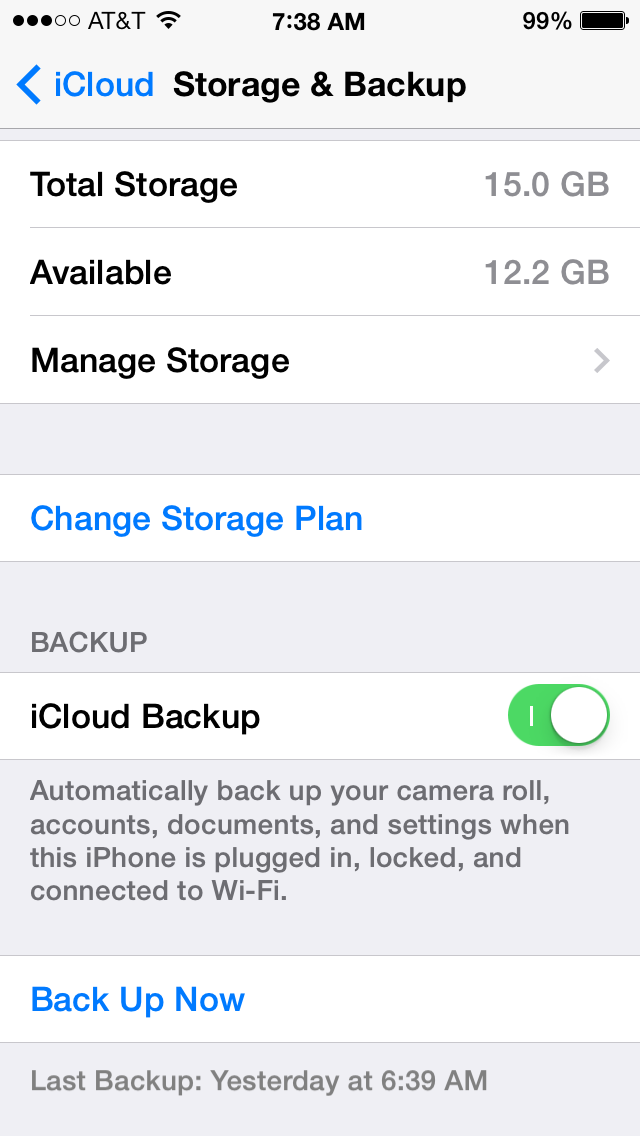
Now what some people don’t realize is that iCloud can and should be used to back up your iOS device(s)! Wirelessly! How does one go about that you ask? Good question! All you’ll need is the white cord and power supply that came with your device, an electrical outlet and a wireless network. Plug the appropriate ends of the cord into the iOS device and the power supply, plug the power supply into the outlet, put your device to sleep ( or let it go to sleep on its own), and if you are connected to a wireless network, iCloud will find your device, when the last backup was initiated and if it was over 24 hours ago, it will back up your device. Once a day, iCloud will back up your non-purchased content (mail, if you have an iCloud account, Contacts, Calendar events, Reminders, Notes).

A couple of other great features of iCloud are Photo Stream, Documents and Data and Find my iPhone. Photo Stream let’s you share pictures, wirelessly, between all your Apple devices. Now, on your Macs, you be have the appropriate version of iPhoto (which comes on all Macs circa late 2011 and forward). If you are running an older Mac with OSX 10.7 or later, and have yet to upgrade iPhoto, you will NOT have Photo Stream on your Mac. Upgrading iPhoto is simple, go to the Mac App Store and download it for $14.99. Photo Stream will house up to 1000 pictures at a time, for up to 30 days. Here’s how it works. You take pictures with your iOS device, and when you get to a wireless network, those pictures get pulled up to iCloud and will be available in your Photo Stream. So after a day of picture taking, you can come to your Mac and see those pictures in iPhoto, without having to do anything! Just click on the Photo Stream option in iPhoto and your pictures are virtually there. If you use the iWork suite of tools (Pages, Keynote and Numbers), iCloud can be used to sync your content from those applications between your devices. So you can create a Keynote presentation on your Mac, save it to iCloud, and open it on your iOS device, very, very cool! The Find My Phone service of iCloud is indispensable. If you’ve misplaced your iOS device, or sadly if it gets stolen, you can log into iCloud.com (with your Apple ID!), and locate it! That is awesome for those of us who quite often forget where we leave our devices! It works using the GPS on your device to locate and display that information to a Map on iCloud.com, very cool! I once had a customer who had her phone stolen, and we were able to track it on iCloud.com. We called the police, informed them of where it was, they tracked down the perpetrator and got my client her phone back! Technology at work!
That friends, is a high level overview of your AppleID, the Apple ecosystem and it’s benefits. For more in depth help, please contact me to set up an appointment!
Enjoy your day, and until next time...Best to you and your devices!


