Showing posts with label #iCloud. Show all posts

Sunday, February 8, 2015

iCloud Basics


Todays blog highlights the many features of iCloud.  In the coming days and weeks, I will expand on each highlighted section to provide more in-depth information to iCloud.

To start, iCloud allows device back up, restore, updating to your iPhone, iPad, iPod Touch as well as managing your iTunes apps, books, music, TV shows, movies, Match, and Photo Stream in the cloud.  If you don’t already know, iCloud is Apple's online content service built to make managing your iPhone, iPod touch, iPad, and Apple TV, and your iTunes content easier and more efficient. iCloud is based in the “cloud”, which is merely a way of saying giant data centers filled with servers that you can access from your device over Wi-Fi or Cellular internet, wherever you may be, and whenever you want your content. It consists of several services that work with the apps on your iPhone, iPod touch, and iPad, and with iTunes and a handful of desktop apps on your Mac and yes, even Windows machines. Most iCloud services are free, like other “cloud” services, additional storage and services are available for purchase.

Because the vast majority of iCloud services are free, and because they work automatically and transparently in the background to backup your data and give you access to your content, no questions asked, you should absolutely use it!

Setup, backup, restore, and update your iPhone, iPod touch, and iPad with iCloud
Thanks to iCloud, you no longer need to plug your iDevice your Mac or Windows PC, then go into iTunes to set it up your iDevice the first time, to keep it backed up, or to upgrade the software. All of that is done faster and more easily, over-the-air (OTA) while on a Wi-Fi network. Because routine tasks, like backups, happen automatically, there is no need to worry about forgetting them and then finding out you don't have a backup when you need it most.


iCloud Mail, Contacts, and Calendars, Bookmarks, Notes, and Reminders
iCloud includes push email, calendaring, and contact services. Push service simply  means whenever you receive an email, it's immediately made available on all your iDevices. Whenever you make or modify an appointment it shows up in your calendar on all your iDevices. Whenever you add or change contact information, that change is  reflected in the contacts on all of your iDevices. You access these services via the Mail, Contacts, and Calendar apps on your iPhone, iPod touch, or iPad, as well as via the iCloud.com website from any desktop browser, or through popular mail, calendar, and contacts apps on your Mac or Windows PC.
iCloud will also sync Safari Bookmarks, Notes, as well as Reminders.

iTunes in the Cloud
iTunes part of iCloud lets you access content you've bought from the iTunes Store, App Store, and iBookstore, re-download it to your iPhone, iPod touch, and iPad, and to iTunes on your Mac or Windows PC, and stream your music, movies, and TV shows to your Apple TV.

iTunes Match
iTunes Match is Apple's iCloud-based "music locker" service that allows you to store copies of all your music on Apple's servers and re-download it from any of your devices, at any time. iTunes Match isn't free, however. It comes at a price -- $24.99 a year (in the U.S.).

Documents in the Cloud
Thanks to iCloud you no longer have to fuss with traditional files and folders or worry about forgetting where you stored  a document when you go back to look for it later. For apps that support Documents in the Cloud, all you have to remember is which app (or apps) opens the type of file you want to work on. From then on, iCloud manages everything, storing any changes you make back up to the server, and pushing down those updates to every device you have logged into your account. Create a Keynote presentation on your iPad at home, get to work and it's ready and waiting for you on your iPhone, Mac or via iCloud.com.

Find my iPhone
Find my iPhone -- or Find my iPod or Find my iPad -- keeps track of your iCloud-enabled devices so you can track them down if they're lost or stolen, and even remotely message, lock, and erase it to keep your data secure.


Keep a look out for more detailed information about each of these iCloud headings in the coming weeks.  In the meantime if you have any questions, please feel free to reach out and contact me at geoff@themacmentor.com.

Monday, June 2, 2014

iOS 8...A Preview.

Are you comfortable with iOS 7 yet?  If not, lets hope you get there, and quick!  Because iOS 8 is right around the corner!  On Monday during the Keynote of the WWDC Apple gave us a preview of the fantastic things coming our way this fall in iOS 8, and there are many!

Among the features that have me most stoked, are the awesome features that allow Apps to share data, or what I will refer to the Unification of your Apple technology.  Imagine you are in your home office, located on the lower level of your house.  Your iPhone is upstairs in your bedroom.  iPhone rings, and so does your iMac!  That's right, your Mac's (running Yosemite) will have the ability to answer calls from your iPhone!  Whoa, want to run that by me again fella??  You read correctly.  Oh, and did I mention that your iPad can answer that call coming into the iPhone as well?  There are some caveats to the above, your devices need to be on the same wireless network for that incredible feature to work.  You'll also be able to start an email on your Mac, and finish it on your iOS device, or vice versa, very cool indeed.  One of my favorite new features is iCloud Drive.  Apple's looooong overdue attempt to bring iCloud to the mainstream user.  iCloud Drive will add many new Dropbox/Google Drive like features.  For starters you'll be able to upload any file type to your iCloud Drive, and you can do it easily on your Mac using Finder!  Apple didn't announce an iCloud Drive app for the iPhone or iPad, but I can't imagine it's far behind.  For now, on your iPhone or iPad you'll have to go into the App the uses the particular file to open it.

Within iMessage, Apple has revealed a new push-to-talk, as well as push-to-video feature that's akin to those same services within the very popular WhatsApp and the Voxer App.  

There's interactive Notifications, which from the looks of it will be very useful.  If you get a message while you are creating a presentation in Keynote, and don't feel like going to the Messages app, you'll be able to reply directly from the Message Notification, that is cool!

There are some great updates to the Mail app, as well as Spotlight Search that I think you'll find incredibly useful

There's also a new native feature on the iOS keyboard that Apple is calling QuickType, that uses "language models" to predict words before they are typed.  How long till an App can type what I'm thinking!!  Yikes I bet that's not too far off my friends...:).  

There's a new feature called Mark-Up, which is an extension to both Mail and Safari that let's you edit attachments by drawing on them.  I'll wait to make any judgements till I use this feature.  

Here's another great feature that should help in your everyday life.  Perhaps not right away, but definitely in the long haul, Apple's new HealthKit App.  Consider it a one stop shop for all your health data that other Apps currently collect, like Jawbone's UP.  Apple has teamed up with key partners, including Mayo Clinic to help you keep track of measurements that matter most to you.  

Lastly (for now), Siri has even gotten smarter.  This is a good thing, because I've started to use Google's Now feature (found in the Google App) on my iPhone because I've found it works far better than Siri.

There will be plenty more to information on iOS 8 in the coming months prior to it's eventual release (early fall 2014).  I'd love to hear from you as to the features you are most excited about.

Until next time, best to you and your devices!

Wednesday, May 14, 2014

How to find your lost iPhone.

(This story is told through the eyes and words of an iPhone)

The memories are foggy as to how my owner lost me, but that's not really what's important here.  What is important is that she found me, thanks to a really knowledgeable and awesome dude (The MacMentor), and a really smart mom (who kept her Apple ID and Password safe).

So here's what I remember...I was having a blast with my owner, down at the beach.  She was living it up, tanning and having fun with her friends, it was a great day!  A few hours go by, the sun started to set, and the next thing I know, she's gone!  Left without me.  I was so sad!  I didn't know what to do, so I waited, and waited and waited.  Thankfully I had a full battery charge.  My only hope was that my owner (who asked to remain anonymous here) remembered her Apple ID, and password.

So here's what happened next (I know because she told me).  My owner was so nervous that her mom was going to go berserk, but thankfully she has a Mac Guy who could help her, his name is The MacMentor (aka, Geoff Horwitz).  She called The MacMentor and told him of her terrible situation and asked him what to do.  The MacMentor asked her if she knew her Apple ID.  She gave him the ID she thought she used, and The MacMentor went to his trusty Mac, opened up Safari and proceeded to go to http://icloud.com.


Once there, he entered the Apple ID and Password my owner gave him (hidden for obvious reasons).  Sadly, he got a message back from iCloud that the Apple ID and password had not been set up!  The MacMentor shook his head in disbelief.  If iCloud had not been set up, how on earth would I (the iPhone) be found?  The MacMentor was sure that my owner had set up her iCloud, so he had her call her mom.  What happened next was just plain awesome!  Thankfully mom had written down the Apple ID and password my owner used for iCloud.  So, mom opened up Safari, went to iCloud.com and signed in with my owners Apple ID and password.


When mom did that she came to the screen capture above.  Next, mom pressed the Find my iPhone button which took her to a map, similar to the one below, but for security reasons, the map below is simply being used as an example.


It's a little hard to see, but on the top right of the screen capture above, there's a window with me, the iPhone, and underneath three buttons.  Play Sound, Lost Mode and Erase iPhone.  Mom was able to locate the iPhone on the beach where my owner had forgotten me, but it was dark out, and it would be really hard to find me!  So, mom called The MacMentor, and he told her to press the Play Sound button (I tell you, that MacMentor dude is a genius!).  This story keeps getting better!  You see, thankfully my battery still had plenty of charge, and I was still on.  So when mom pressed the Play Sound button on iCloud I started making a loud sonar noise.  And low and behold, a few minutes later, even though it was dark, my owner and her friends heard me calling her and she came and got me!  Yeah!  I love stories with a happy ending, and thanks to the wonderful MacMentor, and a resourceful mom,  I didn't get washed up in the tide and lost at sea!

So the moral of the story is this.  If you own an iPhone, make sure you sign in to iCloud, and make sure you remember your Apple ID and password!  And it would help if you knew The MacMentor as well...:).

Thanks for reading, and don't forget to keep your iPhone and iPad safe, using iCloud!


Sunday, April 27, 2014

iCloud basics

Those of us that have owned Apple devices for more than 3 years may or may not remember a service from Apple called MobileMe.  All you need to know about MobileMe is that it never really provided the functionality on the scale that Apple had hoped.  In 2011, Apple re-branded MobileMe to iCloud.  In the almost three years that it's been up and running, it's been a blessing to iOS users.  Offering a cloud service that syncs and backs up your content, and it works!

Why is having a cloud service important?  Simply put, every other major software/hardware vendor has one, and without it, you'd still be plugging your iPhone/iPad/iPod Touch into your Mac (or PC), and muddling through iTunes to sync and back up your content.  That is so early 2000's!  Today it's ease of use we all desire (or demand).  I can tell you, I applauded mightily in October 2011, when my iPhone 4S connected to iCloud and sent my content through iCloud to my Mac and iPad, it was an awesome moment!

So what is iCloud?  In short, it's a cloud based service that syncs your content and it is the best (and easiest)  option to back-up your iOS devices (iPhone, iPad, iPod Touch).  Let' start with syncing.  If you have multiple devices, and I'm not just talking about multiple Apple devices.  You can have an iPhone and a PC, or an iPad and a Mac, or an iPhone, iPad and Mac.  The combinations are endless (well not really but you get where I'm going).  If you have multiple devices iCloud will sync your content seamlessly as long as your iCloud settings are turned on, on the respective devices.


On the two screen captures above (from my iPhone), you'll notice most of the settings are green (or On), however I have a couple (Notes and Reminders) that are off.  The reason I have those two off is because I use other apps for my Notes (Evernote) and Reminders (Wunderlist).  By having Mail, Contacts and Calendar settings all set to on, it allows all content from those apps to be shared amongst any iCloud enabled device that I sign into with my Apple ID and Password.  So if I enter a new contact on my iPhone, iCloud takes that content to the ether, and passes it to my iMac and iPad (without me having to do anything except make sure the same iCloud settings are turned on, on those devices).  Below are the iCloud settings from my iMac.  There is a caveat for the Mail setting.  If your mail address is not an Apple email (@Mac, @Me, @iCloud), in most cases, not all, the mail setting will be grey (Off).  The reason being, if you use another mail host, like Gmail, Yahoo, Comcast or AOL, you don't need Apple to Sync or back up those systems.  Those other systems are supposed to handle that for you.  So if your iCloud account (Apple ID) is "xyz@gmail.com".  There is no need to have that setting on.  Make sense?  Good!


If you looked closely, you'd notice that on my iMac's settings, Notes is checked.  Why would I have it checked on my iMac, and not on my iPhone?  Because prior to using Evernote, I did use the Notes App on my devices, and if I turn the setting off on my iMac, it will erase the notes that are there, and I don't want to do that...:).  I also took screen captures of the Photos setting and the Documents and Data setting.

So as you can see, iCloud handles, or can potentially handle quite a bit of information.  If you chose not to use iCloud, as I mentioned earlier, you'd be stuck in iTunes hell!  

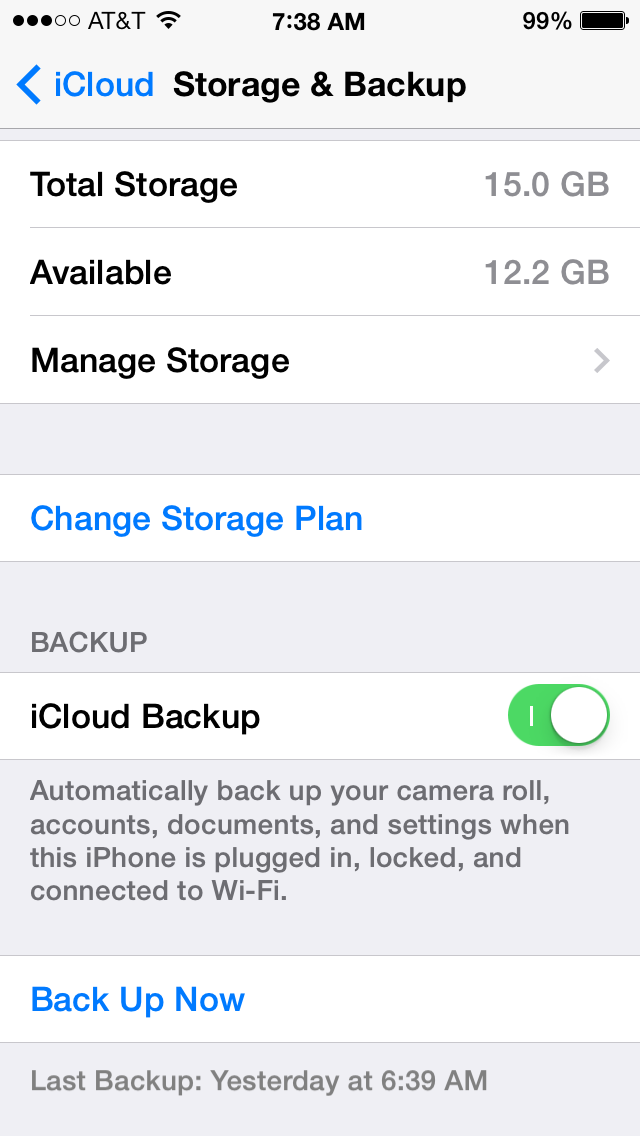
Now iCloud not only syncs your content, but, it also backs up your iOS devices.  Now, what does that mean, and how does that work you ask?  Great questions!  iCloud back ups work like this:  as long as the Backup setting is turned on (see below)


And your device is On, charging to an outlet, and you are in a wireless network, iCloud will ping your device, check when the last backup occurred (in my case 7:22 PM yesterday), and if you are beyond 24 hours since the last backup, iCloud will create a new backup for you.  Or, you can manually backup your iOS device by pressing the "Back Up Now" option if, and only if it is blue, as in the screen capture above (must be in wireless network for this to work).  Please keep this in mind.  iCloud only keeps 1 backup per device.  So you can manually backup as many times as you'd like during the day, but iCloud will only keep the latest.  Reason is because you only need 1 complete backup.  If you are charing your device, and in a wireless network, but your device is off, guess what will not happen, your device will NOT back up!  Any guesses as to why?  If you said "because when your device is off the GPS is disabled, and iCloud can't ping your device", you are 100% correct!  So, don't expect backups to occur when your device is off, because they will not!

Now I wrote about Photo Stream in an earlier blog, so I'm not going to go too much into it here, except to say that you should make sure your Photo Stream settings (below) for My Photo Stream and Photo Sharing are turned on.  The Burst Photos is specific to the iPhone 5S, no other devices currently have that capability.   If Photo Stream and Photo Sharing are off, your pictures will be stuck on your iOS device, until you will manually move them to your Mac (or PC).   


Now if you are a PC users with iOS devices, don't feel left out, you can download the iCloud Control Panel for your PC, and that will allow you to sync content between your iOS devices and your PC, nice move Apple!

Another key element of iCloud, is space.  How much do you get, how much does it cost, what if you run out!  When you create an iCloud account, you get 5GB of free storage.  If you have multiple devices attached to that iCloud account, you'll run out of 5GB quickly.  You can purchase an additional 10GB for $15/yr, 20GB for $40/yr, and 50GB for $100/yr.  Honestly, the additional storage is costly considering what other services offer.  I wonder if and when Apple will lower the prices here.

Finally, and perhaps most importantly, if you have an Apple ID for iTunes, should you use that for iCloud?  My best answer here is, it depends.  If you have a family, sharing an Apple ID for iTunes, I recommend each of you having your own Apple ID for iCloud.  An example would be family of four, mom, dad and two kids.  The Apple ID for iTunes has been set up under dad's email.  Now everyone has multiple devices, and if everyone is sharing dad's Apple ID for iCloud, you'll find you have no space to back up.  Not to mention your contacts, calendar events etc, etc, etc are a combination from everyones devices!  Yuck!  So Mom, and kids should create their own iCloud account (Apple ID).  Don't fret, you can still share calendar events and other content, you'll just share what you want to.  

Well I hope this iCloud intro has been helpful.  Until next time, best to you and your devices!


Wednesday, February 19, 2014

Merging contacts on your iPhone and iPad.


Do you a contact problem on your iOS device?  Do your duplicates stress you out??   It’s practically inevitable that duplicate contacts appears on your iOS device either by accident, typos, through sharing vCard information with others, or from something as basic as a contact changing their name and addresses, for which an additional entry gets added. Prior to iOS 7, there was no simple way of handling multiple contact entries on your iOS device, but that has finally changed, and now there is an easy way to merge those contacts directly and easily!  


Ok, this will be fantastic for those of you that experience DCS!  Because this is done on your iOS device, you do not need to to sync to iCloud, iTunes  or any other computer for the change to take effect, you simply make the change directly on your iOS device, and iCloud, takes care of pushing the changes automatically to any other iOS and OS X devices that use the same Apple ID.


I've got screen captures just below to assist.

This fantastic new feature is not actually called Merge, but rather Link Contacts, which is possibly why it’s  often missed, or overlooked, regardless, here is what you do!

  1. From your iOS device, tap the Contacts app (or on your iPhone, tap the phone app) , open the contact you wish to merge another duplicate contacts with.  
  2. Next, tap on the “Edit” button
  3. Scroll down toward the bottom to find Link Contacts, then tap on the green plus icon “(+) link contacts…” to link/merge the contact with another.
  4. Then, locate the contact to merge (either a duplicate or a changed addressee) and tap on the name, then tap on “Link” in the corner
  5. Repeat for more than one duplicate, otherwise tap on “Done” to finish the merging
Yeah!!  This instantly links/merges all contact details from the two (or more) contact cards into a single contact entry, it does not overwrite any information, it simply merges all details into a single contact.
In the screenshots below, the address information for multiple AT&T contacts has been merged into a single card. The first contact edited will be the one that accepts the merged details:


Once you click “Done”, there will only be a single contact for the details you merged (linked), in this example I've Merged/Linked two AT&T accounts.
One great thing about the “Link Contacts” method is that although it merges the contacts,  it can very easily be  undone if you decide to unmerge/unlink the contact details. To do that, just go back to the contact in question, tap on “Edit” and then tap on the red (-) icon along the linked contacts details.
There are other ways to Merge/Link contacts,  but I'm not going to address those here.  Today I simply wanted to point out a great feature that was added to iOS 7.  
So now it's up to you!  If you are loaded with duplicate contacts, you've been given the green light to get rid of them!  It may take some time, but will definitely be worth it.  Free you device of DCS!
Until next time, best to you and your fewer contacts...:).

Tuesday, February 11, 2014

What is an AppleID?

Getting to know your AppleID

What a lovely spell of cold weather Mother Nature has dumped on us here in Chicago-land, or as we are now known, Chi-Beria!  Thankfully the cold hasn't stopped me from blogging!  Today's blog is inspired by my workshops.  At some of these workshops, I cover what I consider the "Basics" of your iOS Device.  I start in settings, and spend a good deal of time discussing the Apple ID.  Reason being, so many people just don't get it's importance.  So I thought I'd write about it in this edition of The MacMentor's blog, and how it ties into what I call, The Apple Ecosystem.

Apple has created quite a wonderful system for all it's device owners.  It started some 14 years ago with the introduction of the iPod and iTunes.  In order for the music you purchased to be tied to the correct device(s), Apple created the Apple ID.  Then a few years later along came iPhone and iPad,  all tied together using your Apple ID.  All part of the Apple Ecosystem.

Apple’s ecosystem consists of  your devices (Mac, iPhone, iPad, iPod Touch) as well as iTunes, iCloud, iMessage and FaceTime.  The key to the Apple ecosystem is the Apple ID.  Your Apple ID is an email address that Apple uses as a pointer to what I call "Your Apple locker".  Your locker of content within the Apple ecosystem.  Your Apple ID  is what you will use to sign in to the iTunes Store, Mac App Store, iCloud, iMessage and FaceTime.  When purchasing content through iTunes, your Apple ID tells Apple who’s “locker” the content should be assigned to, as well as what devices your content can be shared with.  It's how Apple knows not to assign my purchases to someone else's device(s).  With iCloud, your Apple ID is what Apple uses to push or sync your non entertainment content (Notes, Reminders, Calendar events, Contacts) to all your iCloud enabled devices.   

Another great part of this ecosystem, and a feature that I love is iMessage. 


I'm sure you've all texted from your iPhone.  Did you know you can text to and from your iPad, iPod Touch and your Mac using iMessage?  Oh yeah, did I mention it’s FREE!  That's right folks.  Take a quick look at your Message App on your iPhone.  Click on any message.  It's either Blue or Green.  Do you know why that is?  The green texts are texts that are not going through iMessage.  The blue texts are being sent through iMessage.  I can see you all shaking your heads going, ah that explains it!  How's this for fun.  Apple is basically giving the phone companies the "Bird" (middle finger) with iMessage.  A free way to text.  Of course it's only free to those on Apple devices, but if your whole family is on them, you can get rid of your texting on your cellular bill.  Nice.  

Now let's discuss FaceTime.  FaceTime is the video chat feature of Apple’s ecosystem, that got a great update with iOS 7 and Mavericks and now has what's called FaceTime Audio. 


FaceTime Audio let's you make voice calls through the Apple Ecosystem.  Really?!?!  Do you see what Apple is doing here?  Providing you with ways to no longer have to pay for cellular calls, or texting.  Go Apple!  So how does FaceTime work?  Simple, you sign into FaceTime with your Apple ID and you use the FaceTime App to video chat with anyone else who has a FaceTime capable device.  Real life story.  Last summer, my daughter was in Israel.  From a Kibbutz, she used her iPhone to FaceTime me.  Do you know how much it cost?  NOTHING!  It was completely FREE.  A video call from Israel to Deerfield and it was Free!  Can't beat that with a stick...

Ok, that’s a high level of what your Apple ID does for you within the ecosystem, now let’s break it down further first by iTunes, and the Mac AppStore, then iCloud and iMessage.  

iTunes is the heart of the Apple Ecosystem.  It came to life Thirteen years ago, in January of 2001.  iTunes is where you purchase entertainment for your Apple Devices.  What started out as a cool place to buy and store your music has evolved into an incredible online entertainment store, where you can not only buy music, but movies, TV shows, Apps for your iPhone/iPad/iPod touch and much more.  You can even take classes from many of the top Universities around the world through iTunes U!  Whichever device you choose to purchase entertainment content from, you are required to enter your Apple ID (and password).  This allows Apple to correctly share that content to the proper devices.  The Mac App Store works the same way as iTunes, only it’s content is specific to Mac computers, where iTunes content can be used on all Apple devices, and on PC's.

Now on to iCloud.  The iCloud service is Apple’s latest attempt at cloud storage and syncing, and it blows away its predecessor, MobileMe.  What iTunes is for entertainment content, iCloud is for your personal, non-purchased content.  The iCloud service is available on all Mac’s running at least OSX 10.7 and all iOS devices running at least iOS 5.0 (I hope you are all at iOS 7!!).  To enable iCloud on your Mac computers, you’ll go into system preferences, click the iCloud preference, and login in with, you guessed it, your Apple ID! 


On your iOS device, you’ll tap on settings, and scroll down to the iCloud setting, tap, and sign in with...your Apple ID!  Then you’ll choose which content you desire to sync and backup through iCloud.  


Now what some people don’t realize is that iCloud can and should be used to back up your iOS device(s)!  Wirelessly!  How does one go about that you ask?  Good question!  All you’ll need is the white cord and power supply that came with your device, an electrical outlet and a wireless network.  Plug the appropriate ends of the cord into the iOS device and the power supply, plug the power supply into the outlet, put your device to sleep ( or let it go to sleep on its own), and if you are connected to a wireless network, iCloud will find your device, when the last backup was initiated and if it was over 24 hours ago, it will back up your device.  Once a day, iCloud will back up your non-purchased content (mail, if you have an iCloud account, Contacts, Calendar events, Reminders, Notes).  


A couple of other great features of iCloud are Photo Stream, Documents and Data and Find my iPhone.  Photo Stream let’s you share pictures, wirelessly, between all your Apple devices.  Now, on your Macs, you be have the appropriate version of iPhoto (which comes on all Macs circa late 2011 and forward).  If you are running an older Mac with OSX 10.7 or later, and have yet to upgrade iPhoto, you will NOT have Photo Stream on your Mac.  Upgrading iPhoto is simple, go to the Mac App Store and download it for $14.99.  Photo Stream will house up to 1000 pictures at a time, for up to 30 days.  Here’s how it works.  You take pictures with your iOS device, and when you get to a wireless network, those pictures get pulled up to iCloud and will be available in your Photo Stream.  So after a day of picture taking, you can come to your Mac and see those pictures in iPhoto, without having to do anything!  Just click on the Photo Stream option in iPhoto and your pictures are virtually there.  If you use the iWork suite of tools (Pages, Keynote and Numbers), iCloud can be used to sync your content from those applications between your devices.  So you can create a Keynote presentation on your Mac, save it to iCloud, and open it on your iOS device, very, very cool!  The Find My Phone service of iCloud is indispensable.  If you’ve misplaced your iOS device, or sadly if it gets stolen, you can log into iCloud.com (with your Apple ID!), and locate it!  That is awesome for those of us who quite often forget where we leave our devices!  It works using the GPS on your device to locate and display that information to a Map on iCloud.com, very cool!  I once had a customer who had her phone stolen, and we were able to track it on iCloud.com.  We called the police, informed them of where it was, they tracked down the perpetrator and got my client her phone back!  Technology at work!

That friends, is a high level overview of your AppleID, the Apple ecosystem and it’s benefits.  For more in depth help, please contact me to set up an appointment!

Enjoy your day, and until next time...Best to you and your devices!


Friday, January 17, 2014

Google Docs vs. Pages for iCloud

Google Documents vs. Pages for iCloud


The past few years have seen a big push by technology companies to get more and more things done “in the cloud”.  Both Google and Apple have been key players in this arena.  I think it’s safe to say that Google has done more, and done it better, than Apple.  Where Apple’s strength has resided in hardware and integration of its software to that hardware.  Apple did get a head start with their “cloud” services, introducing .Mac back in 2002.  .Mac provided email service, 100mb of storage, plus hosting of your website(s).  Apple charged $100/year for this service and it was not very good.  Two years later,  Gmail came online.  It was the beginning of Google's “cloud” services,  and for the most part got rave reviews (I’ve been a GMail users since the summer of 2004).    Apple more or less stumbled through .Mac, which was later replaced by MobileMe in 2008.  One of MobileMe’s intended uses was as a syncing technology for content on your Apple devices (poor man’s iCloud).  Sadly MobileMe was a constant source of headaches for users and Apple.  Meanwhile, Google was quietly building (and buying) a cache of better than adequate “cloud” products and tools.  Which leads us to today’s blog, where I compare Google Docs to the newly released Pages for iCloud. 

Google Docs had a significant head start, as it’s been around (in various forms) since 2005.  It officially came out of “beta” status in 2009, giving it an unofficial  four year head start over Pages for iCloud.  Google Docs provides Google users with a free web-based word processor.  If you have a Google account, you simply log in, click on Google drive, then Click Create, and you have the option to create a Document, Presentation, Spreadsheet, Form or Drawing.  


If you click on the Document option, The screen capture above is  a glimpse of what your document window looks like for Google Docs.  Similar to many desktop word processors you have a full set of menu options.  Left to right you have File, Edit, View, Insert, Format, Tools, Table and finally Help.  Below are the File Menu options.  One option you may notice to be missing is the Save and Save As options.  That’s because with Google Docs, as you edit, it saves automatically.


The next menu option we’ll look at is the Edit menu option.  Again very similar features to most desktop word processors, from the Undo option, down to Find and replace. 


Another menu option I want to point out here is the Font option.  On the 2nd row of tools, the Row that starts with the Printer icon, in between the Style button, and Font size button is Fonts.  When you click on the Fonts button, you only get 8 fonts off the bat.  Don't fret, you have the ability to choose more.  Simply slide down to the more fonts option and you'll find a rather exhaustive list of fonts for your writing pleasure!  


Another nice feature of Google Docs, is the ability to share your documents with your co-workers, friends, family, teachers etc. etc.  Simply press the Share button.  Once you do, you'll be prompted with the screen capture you see below.  Google creates a link, you can share via email, Google+, Facebook or Twitter.  You can even have multiple people editing a document at the same time, not that you'd want to...:).  


Now I’m not going to go through each menu option here, the point I’m trying to get across to you, is that you’ve got a nice option here with Google Docs if you are looking for a free on-line document creation tool.  Oh yeah, did I mention it's free, as long as you've got a Google account.  Also, Google Docs can be created on any browser (using any computer), and the documents can also accessed on your iOS (and Android) devices as well, through the Google Drive App.  

This is a great tool which gives you incredible flexibility with your documents.  Create them from your computer, and when you are on the go, or away from your office, use your iPhone or iPad to edit the document as you need.  

Ok, now let's see how Apple's Pages compares to Google Docs.

It’s taken Apple considerably longer to bring the iWork suite online, but, at least they’ve done a better than average job now that Pages is available.  To use Pages (in iCloud), you must have an iCloud account.  To access Pages, you sign into iCloud.com and simply click the Pages icon (see below).  


What you see above is the new landing page.  All new icons (to match iOS 7).  On the lower row, you'll see Pages, Numbers and Keynote.  To start a new document, simply press the Pages icon.  If you already are a Pages user, your screen will look similar to mine below.  You'll see your documents, and perhaps folders if you've chosen to create them.  If you are a new user, you'll only see the + icon, which is what you'll click to create a new document.


Interestingly, folders are created on your iOS device.  As of this writing, with Pages still in beta, you can't yet create folders from the browser.  Document folders work the same as App folders on your device.  You can drag a document into the folder, and also out of the folder (from your device, not from a browser).  Ok, let's move on to creating a new document.  An AWESOME feature in Pages is the ability to choose from numerous document templates!  This is something NOT offered in Google Docs.  So whether it's just a plain document you need to create, or a report, or letter or resume, Pages gives you multiple templates from which to choose (see three screen captures below).  Advantage Pages!  


There are more templates than the ones I've shown above.  There are envelope templates, business card templates, flyer and poster templates, card templates and finally newsletter templates.  Apple has really taken into account what type of document you may be creating, and given you some great templates to help you make the best document possible!

For the purposes of this blog, I'm going to create a blank document.  Here's what it looks like.


As you can see, you are presented with a new window.  Unlike Google docs which opens up within Google drive.  Not that it really matters, but with iCloud Pages, it really looks like you are using a desktop application!  Along the top, you have a button to enlarge, or shrink the page.  You have Undo and Redo buttons.  Next you see buttons for Text, Shape and image.  Clicking Text will drop a text box on your document.  Clicking Shape will provide you with a series of shapes you can add to your document.  Finally the image button will let you add an image to your document.  

Now Apple recently updated the Mac version of Pages.  Ideally, it look and works exactly the same as the web version.  This is great as you only have to learn how to use it one place to be able to use it anywhere!  The iOS version also has the same interface.  

On the above screen capture, on the right side, you see options for your text.  First you have paragraph style, below that Font, then Alignment, Line Space, Paragraph Spacing, List Style, then finally Indent.  All the options cleanly laid out, easy to see, and more important, easy to use!

Pages in iCloud alleviates the need to save your documents.  It simply saves as you type.  Google Docs also does this.  It's a wonderful feature that saves you the worry of wondering if you saved your doc and when it was last saved, and you can't put a price on that!

Similar to Google Docs, Pages gives you the option to Share your document.  Along the top toolbar (above), you'll see the Share button.  Press it and you'll see a window like the screen capture I'm displaying below.


Click the email button and you can email the document link to multiple people, who can in turn edit the document and save it back to your iCloud!  Nice...

Pages let's you share the document in multiple formats as well.  You can save it in either the Pages format, Word format or as a PDF.   Google Docs only lets you save as a Google Doc type.  Another win for Pages.  

The Tools button gives you a series of choices (the screen capture below).  There you have the Find & Replace option, additional settings, Help.  You can also download a copy, email or print the document, go back to all your docs, or finally Sign out.  


One other item of note for pages, it lets you upload a Word document, edit it, and even save it back to Word format.  Can't do that in Google Docs.

I really love what Apple has done with Pages in iCloud.  It's a wonderfully full featured cloud based word processor.  Like Google Docs, it's free (to those with an iCloud account).  I highly recommend trying and getting comfortable with it.  If you have an iPhone 5S or 5C or iPad Air, you can download Pages for those devices for free.  Giving you the ability to have your documents with you anywhere you go.  

In conclusion, both cloud based word processors are very very good.  They are easy to use, full featured, and give you access to your documents where ever you are (via your iOS devices).  Not to bash Microsoft (even though I thoroughly enjoy doing that!), as they also have a cloud version of Office (Microsoft 365), but guess what?  They charge you for it!  $99 dollars a year, or $9.95 a month.  Why bother when you have two great options that are free!  

I hoped you enjoyed today's blog, and I hope you try one or both of these cloud document tools out as it's the future, and it's better to be comfortable with it sooner rather than later!

Until next time, best to you and your devices.  And as always, I welcome your comments.


Tuesday, November 5, 2013

Why you should go with the new iPad Mini...

About a year ago, I wrote a blog on the pros and cons of the iPad Mini.  My biggest complaint at the time was the fact that the Mini's Specs were not on par with the full size iPad.  Well throw all that out the door!  I just went and played with the new Full size iPad Air, and it's nothing short of amazing, in fact if it had the fingerprint scanner that's on the iPhone 5S, I would call it simply "Amazing".  Why am I bringing up the iPad Air here, because, quite frankly, there's no need to go that route any longer...Apple has done an incredible job making the iPad Air smaller, but, now that the iPad Mini has the same specs, I can't see any reason to buy the iPad Air!  It's $100 more and doesn't offer anything but a slightly bigger screen!

The only difference in devices is this:  The iPad Air offers a 9.7 inch display, and the Mini offers a smaller 7.9 inch LED-backlit Multi-Touch display with IPS technology (IPS stands for In Plane Switching, and it provides better viewing while on an angle).   They both have the incredible Retina display that provides 2048x1536 resolution, what you need to know here is that it's better than HD quality.  You also get brand new WiFi antennas, sadly that don't support the new AC standard, but you are getting multiple WiFi antennas to give you better and faster WiFi response.  Also included is the latest in Bluetooth, Bluetooth 4.0.  Last but most important, you are getting the new A7 Chip with 64-bit architecture and the new M7 motion coprocessor (both introduced earlier in the iPhone 5S), and this last bit is THE reason to purchase the Mini, period end of story!  Same all the way around, minus the smaller screen.

Some of you may argue that it's only $100 difference, why not go with the iPad Air?  Think of it in terms of storage.  You can get the new iPad Air, WiFi only, 16GB for $499 (plus tax).  Or, you can get the iPad Mini, 32GB for $499 (plus tax).  Storage is king on these devices, and if you can double your storage, and only give up some screen size, it's a no brainer.  The new Mini is, in my opinion, the way to go.  

Here's a quick look at the front and back...I've made my decision, I hope I've made your easier as well!